How to Fix Outlook Not Connecting to Microsoft 365 (Modern Auth & Credential Fix)
Field-tested troubleshooting playbook to resolve Outlook "Trying to connect", password credential loops, and Modern Auth errors in Microsoft 365.
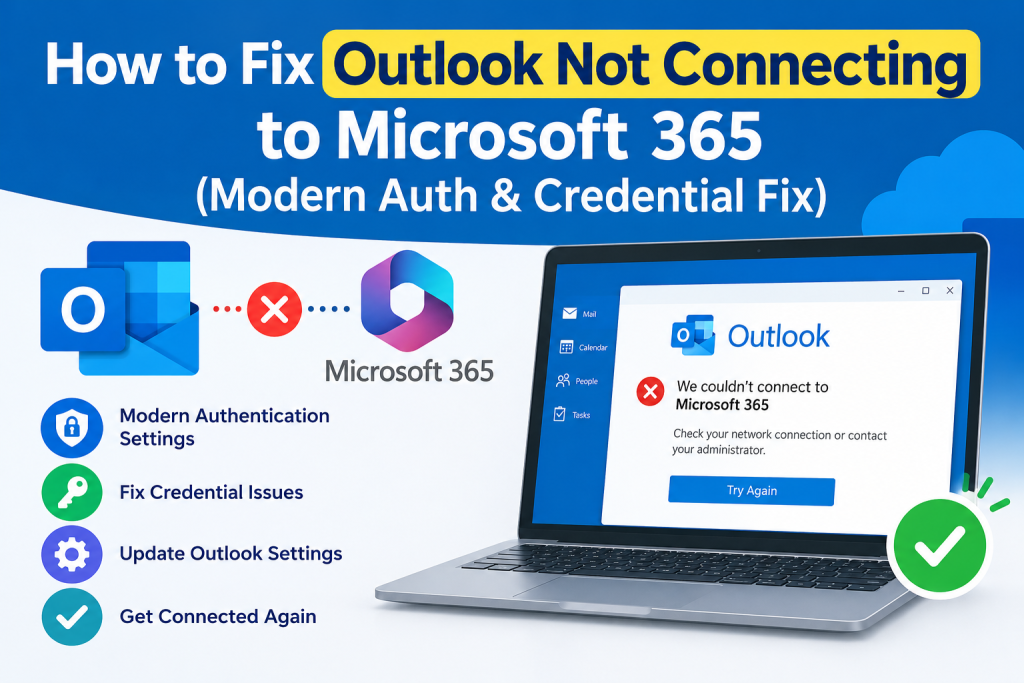
When desktop Microsoft Outlook fails to connect to Exchange Online in Microsoft 365, it usually presents as a status bar stuck on “Disconnected”, “Need Password”, or “Trying to Connect…”. In modern enterprise environments, over 90% of these incidents stem from corrupted Modern Authentication tokens in Windows Credential Manager or Autodiscover caching issues.
Method 1: Clear Cached Microsoft Credentials in Windows
Windows Credential Manager stores encrypted OAuth tokens and password hashes. When an expired token gets locked, Outlook enters an endless silent authentication loop.
- Close
outlook.exeand ensure no background processes exist in Task Manager. - Press Win + R, type
control keymgr.dll, and press Enter. - Under Generic Credentials, remove all entries starting with
MicrosoftOffice16_Data:andMS.Outlook.15:. - Restart Outlook to prompt for a clean Modern Auth MFA login window.
Method 2: Force Clean WAM Broker Plugin via PowerShell
Run the following script as administrator to reset the Windows Web Account Manager (WAM) cache which handles OAuth popups:
if (Test-Path "$env:LOCALAPPDATA\Packages\Microsoft.AAD.BrokerPlugin_cw5n1h2txyewy") {
    Rename-Item "$env:LOCALAPPDATA\Packages\Microsoft.AAD.BrokerPlugin_cw5n1h2txyewy" "$env:LOCALAPPDATA\Packages\Microsoft.AAD.BrokerPlugin_old"
}
Add-AppxPackage -Register "$env:SystemRoot\SystemApps\Microsoft.AAD.BrokerPlugin_cw5n1h2txyewy\AppxManifest.xml" -DisableDevelopmentMode
Method 3: Test Autodiscover Connectivity
Hold Ctrl and right-click the Outlook notification tray icon. Select Test E-mail AutoConfiguration, uncheck Guessmart and Secure Guessmart, and click Test. Verify that the Autodiscover URL resolves to autodiscover.outlook.com.